
Getting started
1. Create an account
Section titled “1. Create an account”Open https://myrel.fibteq.io (or your own server) and choose Create an account. Myrel signs you in with email and password.
If the server can send email, you get a verification link. You can sign in right away, but until you verify you cannot accept invitations or use the cloud sandbox. The banner at the top has Send again if the link did not arrive.
In the desktop and mobile apps, the login screen shows which server you are connecting to; use Change to point the app at a self-hosted server.
2. Start a project
Section titled “2. Start a project”A project is one shared chat. On the Projects page choose Start a project, give it a name and Create.

Each project has these tabs:
- Conversation: the project chat where you ask for work
- Threads: one thread per task Myrel is working on
- Artifacts: pages and apps agents publish
- Files: project knowledge (files, memory, instructions)
- Usage: what the project used and its estimated cost
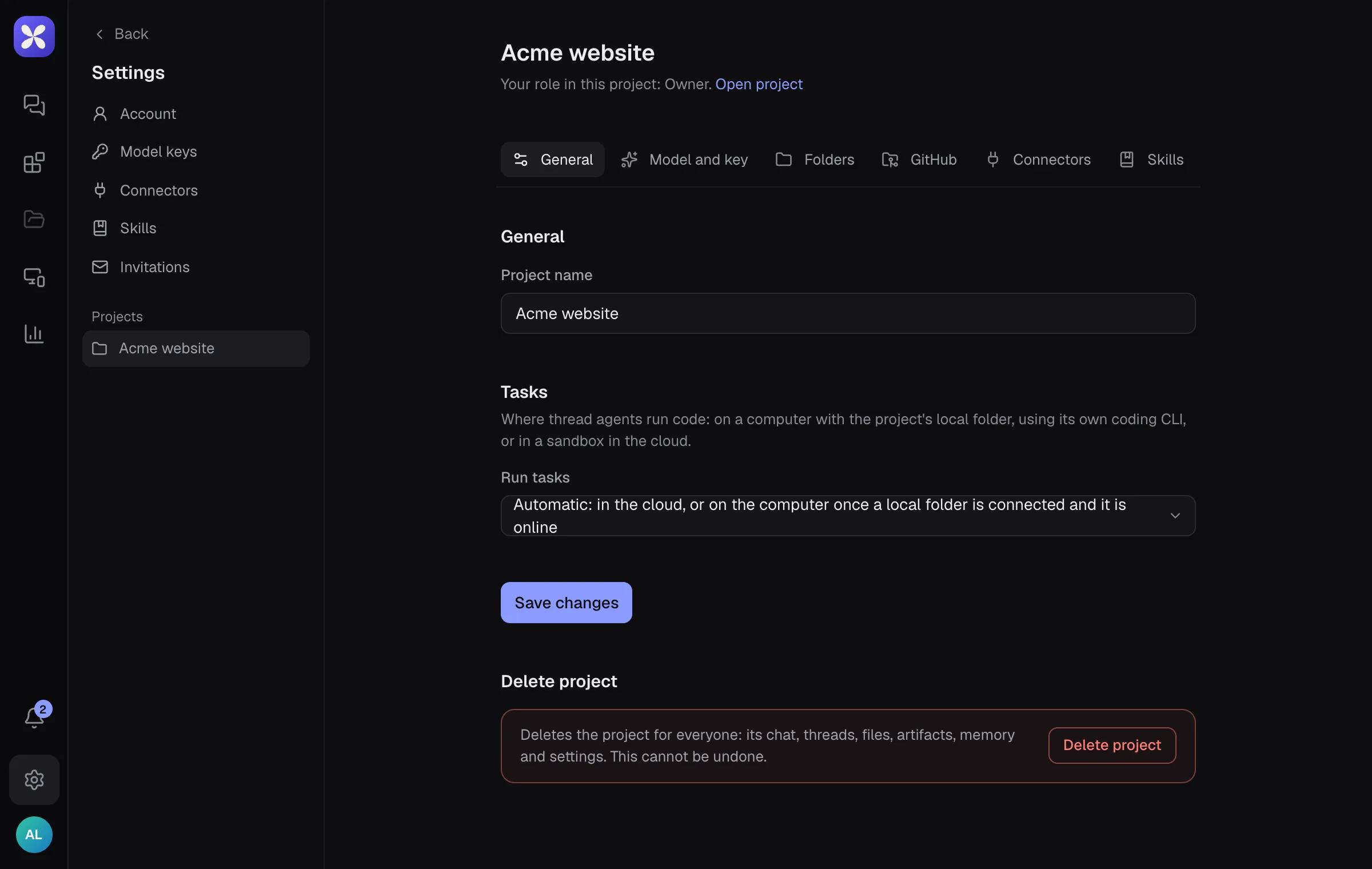
The gear icon opens Project settings: name, where tasks run, model, folders, GitHub, connectors, skills and members.
3. Ask for something
Section titled “3. Ask for something”Type a task into Give Myrel a task. Myrel replies in the chat and opens a thread for the work. See Projects and threads.
4. Invite people
Section titled “4. Invite people”Project settings → Members → Invite people. Enter an email and pick a role:
| Role | Can |
|---|---|
| Owner | everything, including deleting the project |
| Admin | manage members, invitations and settings |
| Member | work in the project |
The invited person accepts under Settings → Invitations. Invited people can create an account even when a server has closed sign-ups.
5. Next steps
Section titled “5. Next steps”- Let agents work on your machine: Using your computer
- Connect a repository: GitHub integration
- Write Project instructions (Files → Instructions): rules every agent in the project follows
- Use your own model key: Settings → Model keys, then pick it in Project settings → Model and key
Plans on the hosted service
Section titled “Plans on the hosted service”The hosted service has Free, Pro and Team plans (Settings → Plan and billing). Work that runs on your own computer, and projects that use their own model key, do not count toward plan limits. Self-hosted servers have no plans unless the operator turns them on.